App organization
Clean Android work app list for drivers using many platforms
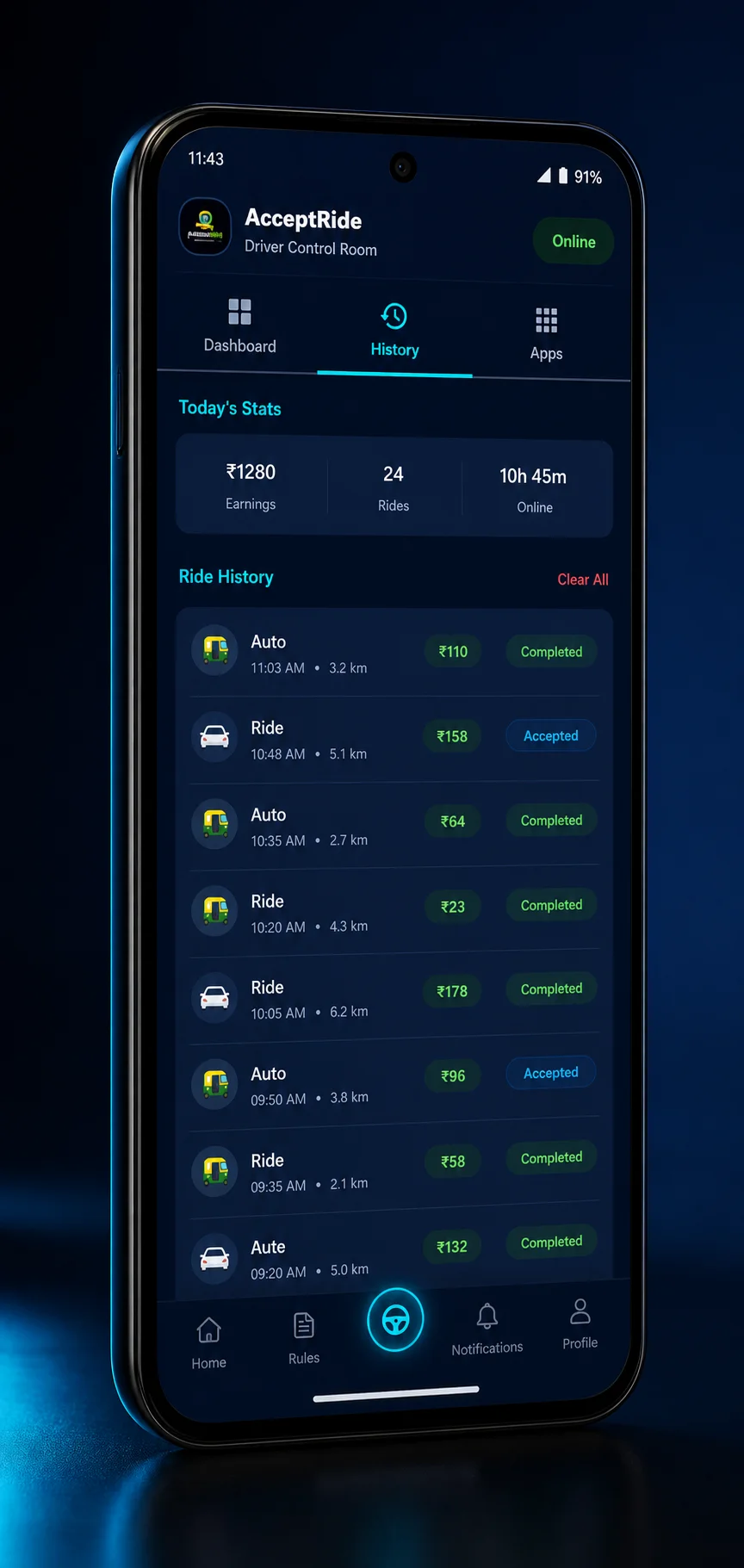
Many Indian drivers do not work with only one app. A single phone may carry ride apps, bike taxi apps, food delivery apps, grocery apps, logistics apps, maps, payment apps, WhatsApp, and support tools. After a few months, the phone becomes crowded. The driver starts searching for the right app instead of starting the shift smoothly.
A clean work app list is a small habit with a big effect. It helps the driver know which apps are active today, which permissions matter, and which old apps should stay quiet. This article explains a practical Android app organization routine for drivers who use platforms such as Ola, Uber, Rapido, Swiggy, Zomato, Blinkit, Zepto, Porter, and similar services.
Separate work apps from personal apps
If your launcher allows folders, create one folder for work. Keep only active work apps inside. Do not mix games, shopping apps, short video apps, and banking apps in the same folder. During work, the phone should feel like a tool, not a crowded home screen.
Some drivers prefer one screen for ride apps and another for delivery apps. That is also fine. The important thing is that you can open the correct app quickly without searching. A simple layout reduces mistakes when the day is busy.
Decide the active apps before the shift
Not every installed app needs attention every day. If today is a bike taxi day, choose the related apps. If today is food delivery, choose those apps. If you work with mixed platforms, decide the main apps for the first block. AcceptRide can support this habit by making selected work apps easier to review in one place.
This decision matters because too many active apps create noise. Alerts start competing with each other. Battery drops faster. The driver feels busy but not always productive. A clean active list creates a calmer phone.
Remove dead apps and old shortcuts
Drivers often keep apps they no longer use. Maybe the account is inactive. Maybe the service is not available in the city. Maybe the driver moved to another platform. These old apps can still update, show notifications, or consume storage. Review them once a month.
Deleting an app does not mean you can never return to it. If it is not part of your current work, remove it or at least disable notifications. A phone with more free storage usually behaves better, especially budget Android phones.
Check app permissions after updates
App updates can change behavior. Android updates can change permission prompts. If a work app suddenly stops showing alerts, location, or overlay behavior, check permissions again. Drivers should not assume that yesterday's setup is still perfect today.
Important permissions usually include notifications, location, background activity, battery access, and sometimes overlay or accessibility depending on the tool. Use a checklist before the busy window. Fixing permissions while parked is easier than troubleshooting while moving.
Keep payment and support apps ready
Work is not only accepting requests. Drivers also handle UPI, bank messages, customer calls, support replies, and plan payments. Keep payment apps updated and accessible, but avoid exposing sensitive apps unnecessarily. Use screen lock. Do not share OTPs. Do not save private payment screenshots in random chat groups.
For support, keep WhatsApp and AcceptRide support access easy to reach. When something fails during setup, a clear support path saves time. But support should not replace basic self-checks. First check permissions, internet, battery, and login state.
Keep the home screen readable while parked
A driver should be able to understand the phone at a glance while parked. Use large enough icons, remove unused widgets, and keep the first screen focused on work. If the wallpaper makes app names hard to read, change it. If too many notification badges create pressure, clean them before the shift. A readable home screen is not about style; it saves attention.
This is even more important for drivers who share the phone with family use after work. Keep personal apps on a separate screen or folder. When work starts, the first screen should show only what helps the shift: driver apps, maps, payment, support, and AcceptRide.
Use one weekly cleanup routine
Choose one slow time each week to clean the phone. Remove unused apps. Clear unnecessary downloads. Update important work apps. Check storage. Restart the phone. Review notification settings. Confirm AcceptRide is showing the right work app list. This routine takes a few minutes but prevents many small issues.
Do not do major cleanup just before a busy shift. App updates can require login again. Permissions may need approval. A weekly slow-time cleanup is safer than a last-minute change.
Organize by work mode
Some drivers switch between ride, delivery, grocery, and logistics work depending on time of day. If that is your style, organize by work mode. Morning ride apps, lunch delivery apps, afternoon grocery apps, evening ride apps. Keep the current block visible and the rest quiet.
This method helps drivers avoid mental overload. The phone shows what matters now. The driver can still change later, but each block starts clean.
If you use two SIM cards, also decide which number is for work communication. Customers and platforms should not keep reaching the wrong number. Keep the work SIM active, data stable, and caller ID simple. A clean app list works best when the rest of the phone setup is also predictable.
A simple work app list rule
If an app helps today's earning, keep it visible. If it may help later but not today, keep it installed but quiet. If it has not helped for weeks, remove it or archive it. If it creates notification noise without value, block it. These rules are simple enough to follow every month.
Drivers who keep the phone organized often feel less rushed. They can see alerts faster, check setup faster, and explain issues to support more clearly. A clean app list is not decoration. It is part of a professional work routine.