Permission setup
Android notification permission guide for Indian drivers
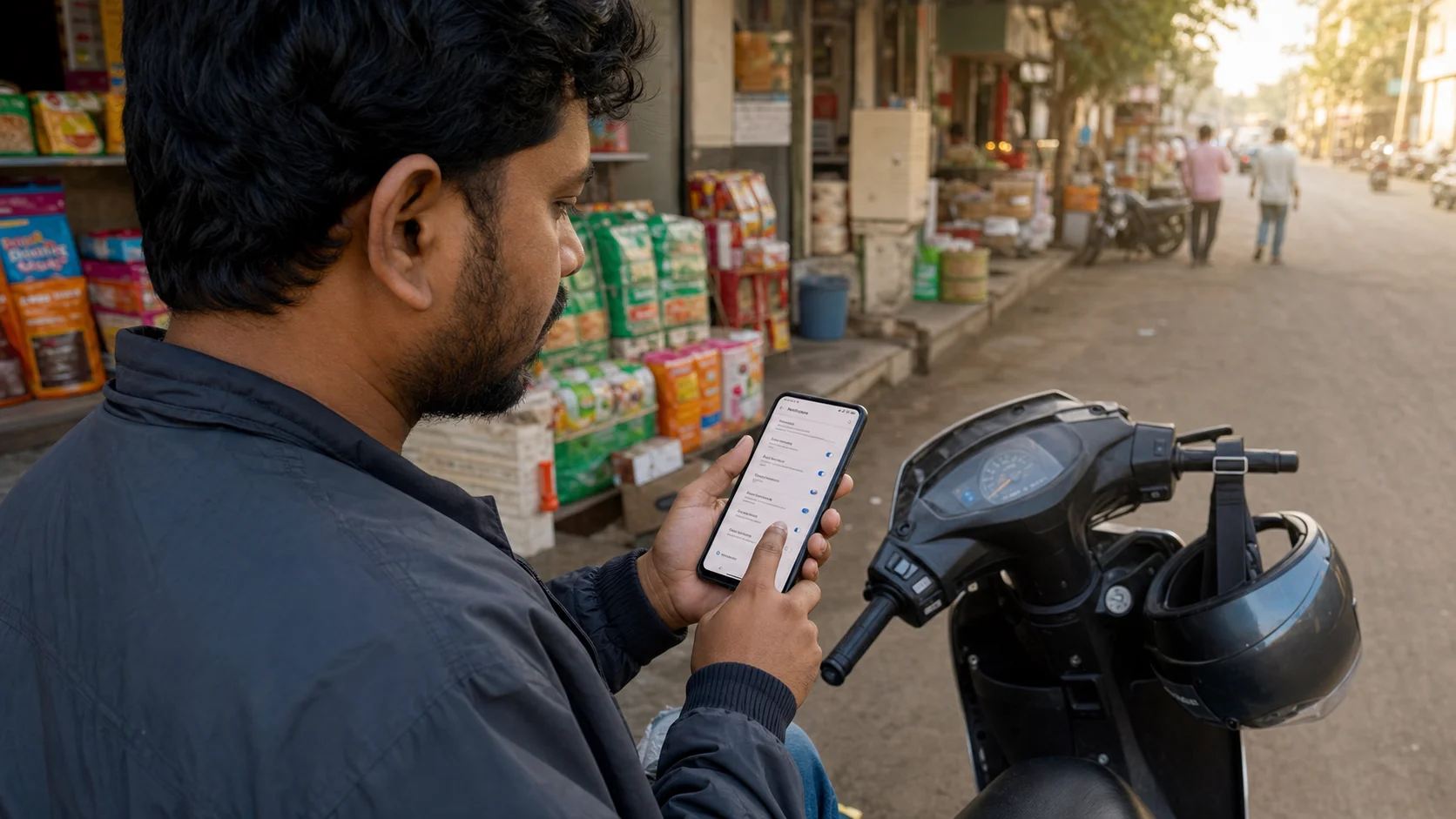
Many drivers search for a simple answer to one problem: why am I not getting ride alerts on my Android phone? The answer is not always the cab app or delivery app. Sometimes the phone itself is blocking notification permission, battery background activity, overlay access, or sound alerts. A driver may keep the app installed and still miss work because one small setting is off.
This guide is written for Indian cab drivers, bike taxi riders, delivery partners, grocery riders, and logistics workers who use Android phones every day. The goal is not to touch every technical setting. The goal is to build a repeatable check that can be done before a shift, especially on Android 13 and newer phones where notification permission became more strict.
Start with the main app notification switch
Open Android settings and search for Notifications. Then open App notifications and check the work apps you depend on. If you use ride-sharing, delivery, and grocery apps together, check each one. Do not assume that one permission applies to every app. A phone can allow notifications for one app while blocking another.
For drivers, this matters because app alerts are time-sensitive. A missed sound or hidden banner can mean a request is gone before you even notice it. Keep notifications on for the apps you are actively using that day. If you are not working with one app, turn it off later instead of allowing every old app to disturb you.
Check lock screen and banner style
Some phones show a notification silently in the drawer but do not show it on the lock screen or as a pop-up banner. That is not enough for active work. When the phone is mounted or locked, the alert should be visible quickly. Look for settings like Lock screen notifications, Floating notifications, Pop-up view, Banners, or Heads-up notifications. Different brands use different words.
Do not set private personal messages to show full detail if you are uncomfortable with that. For work apps, choose a setting that makes the alert visible without exposing unnecessary personal data. The practical target is simple: you should know that a work request arrived without unlocking and searching through menus.
Do not ignore sound and vibration
Drivers often keep the phone silent because calls, marketing messages, and social media become annoying. During a shift, silence can become expensive. Use Do Not Disturb carefully. If Do Not Disturb is on, allow important work apps or turn it off during the work block. Keep vibration active if the phone is mounted close enough to feel or hear.
Test sound before leaving home or a waiting point. Ask someone to send a message or use any app that can trigger a notification. If normal notifications are not visible, ride alerts may also be affected. A thirty-second test can prevent a confused hour later.
Battery settings can hide alerts
Android battery saver is useful, but it can delay background alerts. On many phones, app battery usage has options like Unrestricted, Optimized, Restricted, Allow background activity, or Auto launch. For the apps you depend on during work, avoid the strictest battery mode. If the phone stops an app in the background, notification permission alone may not help.
This is common on budget phones and older devices. The phone tries to save battery by sleeping apps. That can be fine for shopping apps or games, but it is risky for live driver work. Keep a charger or power bank ready, then allow important apps enough background access to stay alive.
Use AcceptRide as a pre-shift checklist
AcceptRide is useful when it reminds you to look at permissions before the shift starts. The best time to fix notification permission is not while a customer is calling or traffic is moving. Check the setup while parked. Confirm Accessibility, overlay, notifications, selected work apps, and battery state. A clean setup makes the phone easier to trust.
Drivers who work across Ola, Uber, Rapido, delivery, grocery, or logistics apps should build this habit like checking fuel or tyre pressure. Phone readiness is now part of vehicle readiness. If the phone cannot show alerts clearly, the rest of the workday becomes harder.
What to do if alerts still do not come
Restart the phone once. Open the work app manually. Check internet connection. Switch from weak Wi-Fi to mobile data if needed. Confirm that the app is logged in and not paused by the platform. Then check notification permission again. Sometimes an app update resets behavior, especially after Android updates.
If the issue appears only after installing a new cleaner, booster, antivirus, or battery saver app, review that app too. Many third-party cleaner apps block background services aggressively. Drivers do not need a phone full of optimization apps during a shift. They need stability.
Keep one test routine for every new phone
When you buy a new phone or reset an old phone, do not start work immediately after installing apps. New Android phones often ask for notification, location, battery, overlay, and accessibility permissions one by one. Open each work app, allow the required permissions, sign in, and then do one small test before the first serious shift. This is especially useful for drivers shifting from one brand to another because Samsung, Redmi, Realme, Vivo, Oppo, Motorola, and OnePlus settings do not always use the same names.
Write down the exact menu path that worked on your phone. If the issue returns later, you will not need to search again. A driver who knows his own phone settings can fix small problems faster than waiting for someone else to explain them during a busy hour.
A simple daily notification routine
Before going online, unlock the phone, open AcceptRide, confirm the work apps for the day, check notification permission, check battery mode, and test sound. Keep the phone mounted where it can be seen without unsafe handling. During breaks, quickly review whether alerts came normally. After the shift, you can reduce noise again.
This routine is basic, but it solves many “app alert not coming” problems before they become lost work. A driver does not need to become a technician. The driver only needs a small checklist that works every day.